

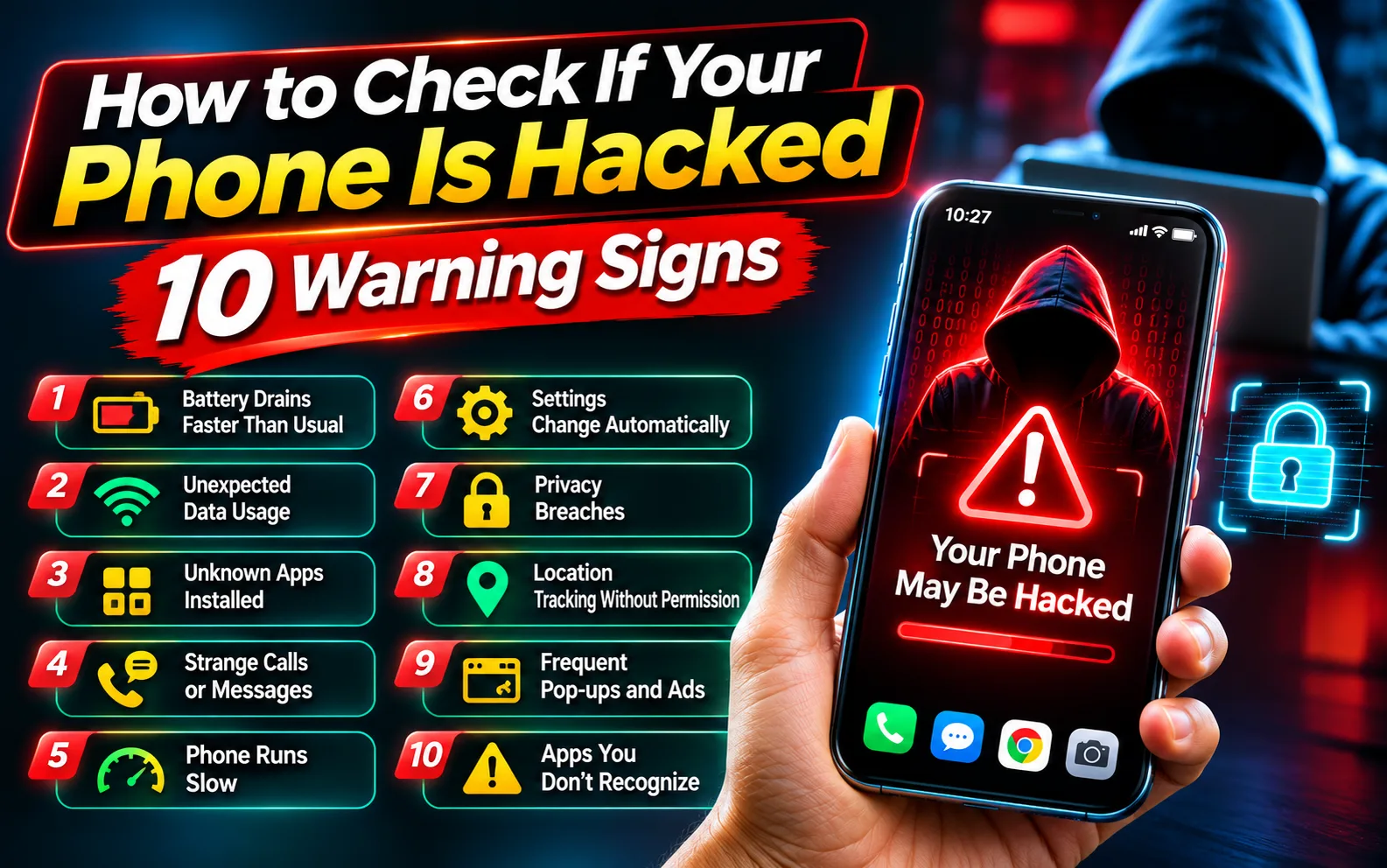
Smartphones have become an important part of everyday life. People use their phones to manage bank accounts, make online payments, communicate with family, store personal photographs, access business information and manage social media accounts. However, as smartphones become more connected to our personal and professional activities, they also become attractive targets for cybercriminals. Hackers can attempt to steal personal information, access online accounts, monitor activities, install malicious applications or misuse financial details.
One of the biggest challenges is that phone hacking does not always produce obvious symptoms. A compromised smartphone may continue working normally while suspicious applications operate in the background or someone accesses an online account without the owner’s knowledge. In other situations, users may notice unusual battery consumption, unexpected data usage, unknown applications, strange messages or unfamiliar login notifications.
However, not every unusual phone behaviour indicates hacking. An ageing battery, outdated software, background applications and network problems can also cause similar symptoms. Therefore, understanding the warning signs and checking the right security settings are important before deciding that a device has been compromised.
Whether you use an Android smartphone or an iPhone, there are several ways to check for suspicious activities and improve your device security. This guide explains 10 common warning signs of phone hacking, how to check whether someone has access to your phone and what steps you should take if you discover a potential security problem.
Can Someone Hack Your Phone Without You Knowing?
Yes, it is possible for someone to gain unauthorised access to certain phone functions or online accounts without immediately alerting the owner. Cybercriminals use different methods depending on their target, the device’s security weaknesses and the information they want to obtain.
For example, malicious applications may collect personal information or misuse permissions granted by the user. Phishing messages can trick people into entering their passwords on fake websites, while spyware may monitor certain activities on a compromised device. Attackers can also gain access to accounts through stolen passwords, compromised verification codes or previously active login sessions.
Another common risk involves social engineering. Instead of directly breaking into a smartphone, criminals may convince users to install remote-access applications, share verification codes or approve suspicious login requests. Once access is obtained, they may attempt to control certain accounts, view private information or conduct fraudulent activities.
It is also important to understand that phone hacking and account hacking are not exactly the same. Someone may access a WhatsApp, Google, Apple or social media account without compromising the entire smartphone. Similarly, an infected application does not automatically mean that every account and file on the device has been accessed.
This distinction is important because identifying the actual problem helps users choose the correct security measures.
10 Warning Signs That Your Phone May Be Hacked
There is no single symptom that confirms a smartphone has been hacked. However, several unusual activities appearing together may indicate malware, unauthorised account access or a privacy problem. The following warning signs can help users identify situations that require further investigation.
1. Your Phone Battery Drains Faster Than Usual
Unexpected battery consumption is one of the most commonly discussed signs of a potentially compromised smartphone. If an unfamiliar application is continuously running in the background, it may consume additional processing power and battery. Certain types of spyware and malicious applications can also perform background activities that affect battery performance.
For example, you may notice that your phone loses a significant amount of battery even when you are not actively using it. The device may also become warmer during periods when it would normally remain idle. If an unfamiliar application is consuming an unusually large percentage of battery, it is worth investigating.
However, battery drain does not automatically mean that someone has hacked your phone. Battery ageing, poor network coverage, location services, software updates, gaming and background synchronisation can produce similar problems.
How to check: On Android, open Settings, select Battery and review battery usage by application. On an iPhone, open Settings, select Battery and examine the application activity and battery usage over the available period. Look for applications that you do not recognise or that consume unusually high resources without a clear reason.
2. Your Mobile Data Usage Suddenly Increases
Unexpected mobile data consumption can indicate that an application is transferring information in the background. Some malicious applications may communicate with external servers, download additional files or send collected information through an internet connection.
If your daily data consumption suddenly increases without a corresponding change in your usage habits, review which applications are using the most data. For example, an unfamiliar application consuming large amounts of mobile data could deserve further investigation, particularly if you do not remember installing it.
How to check: Android users can open Settings and look for Network and Internet, Connections or Data Usage, depending on the phone manufacturer. iPhone users can visit Settings and select Mobile Service or Cellular to review data usage by application.
Compare the data consumption of individual applications with your normal usage. Video streaming, cloud backups and automatic updates can also use substantial data, so investigate the actual application rather than assuming that high usage confirms hacking.
3. Unknown Applications Appear on Your Phone
Finding an application that you never installed is a warning sign worth taking seriously. Some malicious applications disguise themselves with ordinary names or icons to avoid attracting attention. Others may appear after users install applications from unofficial websites or approve suspicious installation requests.
Certain applications may also request permissions that are unnecessary for their advertised purpose. For example, a simple wallpaper application requesting access to contacts, microphone, SMS messages and accessibility services deserves closer examination.
How to check: Android users should open Settings, select Apps and review the complete list of installed applications. Check unfamiliar names, recently installed applications and applications with unusual permissions. On an iPhone, review the App Library and Settings to identify applications you do not recognise.
Do not uninstall an application simply because its name looks unfamiliar. Some legitimate applications have technical names or are installed by the device manufacturer. Search for the application or check its publisher before removing it. If you identify a suspicious third-party application, review its permissions and uninstall it where appropriate.
4. Your Phone Becomes Hot Even When You Are Not Using It
Smartphones naturally become warm during demanding activities such as gaming, video recording, navigation, charging and software updates. However, repeated overheating while the phone is idle may indicate an application or process consuming excessive resources.
Some malicious applications may operate continuously in the background, causing the processor to remain active. This can increase heat generation, particularly when combined with excessive network activity or other background operations.
If your phone becomes unusually hot without an obvious reason, check the battery usage section and review recently installed applications. Also check whether a software update or cloud backup is running.
Overheating alone is not proof of hacking. Environmental temperature, battery condition, charging equipment and demanding applications can also contribute to the problem. If the phone becomes extremely hot, stop using it, disconnect it from charging if safe to do so and allow it to cool.
5. You Notice Strange Pop-Ups and Unwanted Advertisements
Unexpected advertisements, browser redirects and repeated security warnings can indicate unwanted software or a suspicious website notification. Some applications use aggressive advertising techniques, while malicious websites may display fake virus alerts designed to frighten users into downloading additional software.
For example, a browser page may suddenly display a message claiming that your phone contains several viruses and needs immediate cleaning. It may provide a download button or ask you to call a technical support number.
These warnings are frequently used in online scams. A website cannot reliably diagnose the complete security condition of your smartphone simply by displaying a pop-up message.
How to check: Review recently installed applications, browser notification permissions and website settings. Remove suspicious applications and disable notifications from websites you do not recognise. Avoid tapping unknown download buttons or installing applications promoted through alarming pop-ups.
6. Your Phone Sends Messages or Makes Calls Without Your Knowledge
Unexpected outgoing messages, calls or emails are among the more concerning warning signs. If people report receiving strange links from your phone number or social media accounts, someone may have gained access to an account, messaging application or device feature.
For example, a compromised messaging account may send suspicious links to contacts without the account owner’s knowledge. Similarly, an attacker who obtains access to certain communication services may attempt to misuse them for scams or financial fraud.
Check your recent call history, SMS messages, messaging applications and email activity. Look for messages you did not send, unfamiliar recipients or unusual communication patterns.
If you discover suspicious activity, secure the affected account immediately. Change its password, sign out of unfamiliar sessions and enable two-factor authentication. Contact your mobile operator if you notice unexplained outgoing calls, SMS activity or possible SIM-related issues.
7. Your Phone Settings Change Without Your Permission
Unexpected changes to important settings can indicate unauthorised access or the installation of an application with excessive permissions. For example, you may notice that location sharing has been enabled, an unfamiliar application has administrator access or an unknown configuration profile has appeared.
On Android, applications with accessibility access, device administrator privileges or permission to install unknown applications may have extensive capabilities. Such permissions are sometimes required by legitimate applications, but they should not be granted without understanding why they are needed.
On an iPhone, unknown configuration profiles or mobile device management settings may affect how a device operates. These profiles are sometimes legitimately installed by employers or educational institutions, but an unfamiliar profile on a personal device should be investigated.
How to check: Android users can review Privacy, Permission Manager, Accessibility and Security settings. iPhone users can open Settings, select General and review VPN and Device Management for unfamiliar profiles. Also check which applications have access to your camera, microphone, contacts and location.
8. You Receive Unfamiliar Login Alerts and Password Reset Messages
Unexpected login notifications are among the strongest indicators that someone may be attempting to access your online accounts. If Google, Apple, Instagram, Facebook or another service sends an alert about a login you did not recognise, investigate it immediately.
Other warning signs include password reset emails you never requested, changes to recovery information and notifications about a new device being connected to your account.
Importantly, these alerts do not necessarily mean that your entire phone has been hacked. An attacker may have obtained your password through phishing, a data breach or password reuse.
How to check: Review the security activity and connected devices section of your important online accounts. For a Google Account, visit the Security section of your account settings. For an Apple Account, review the devices listed under your account. For social media platforms, check login activity and active sessions.
If you find an unfamiliar device or login, secure the account, change its password and sign out of other sessions. Use a unique password that is not shared with other websites.
9. You Cannot Access Your Own Accounts or Notice Unauthorised Changes
Losing access to an account unexpectedly can indicate that someone has changed its password, recovery email address or other security information. In some cases, attackers may deliberately lock the original user out to maintain control over the account.
You may also notice that your social media profile has changed, unfamiliar posts have appeared or messages have been sent without your permission. Email accounts can be particularly important because they are often used to reset passwords for other services.
If this happens, use the official account recovery process provided by the service. Avoid clicking recovery links received from unknown senders or paying individuals who claim they can recover hacked accounts.
Once access is restored, change the password, review active sessions, remove unfamiliar recovery information and enable two-factor authentication. Check your email forwarding rules and connected applications for settings that you did not create.
10. Your Phone Behaves Unusually or You Notice Unknown Remote Access
A smartphone that opens applications unexpectedly, displays unusual activity or shows unfamiliar remote-access settings may require a security check. Certain malicious applications can misuse accessibility permissions or other privileges to interact with device functions.
Remote-access applications are not necessarily harmful. They are commonly used for technical support, business operations and screen sharing. However, if someone persuaded you to install such an application and share an access code, they may have been able to view or control parts of your phone during the session.
Review installed applications and check whether any remote-support tools are running without your knowledge. If you discover an unfamiliar remote-access application, disconnect the session, revoke unnecessary permissions and uninstall the software if it is not required.
If you suspect someone is monitoring your device, avoid making sensitive account changes on that phone until you have secured the situation. Use a trusted device to change important passwords and seek professional assistance if necessary.
How to Check If Your Android Phone Is Hacked
Android provides several built-in security features that can help users identify potentially harmful applications and suspicious device activity. Although the exact settings may differ between Samsung, Google Pixel, OnePlus, Xiaomi, Vivo, Oppo and other manufacturers, the general security checks are similar.
Step 1: Run Google Play Protect
Open the Google Play Store, tap your profile picture and select Play Protect. Choose the scan option to check installed applications for potentially harmful behaviour. Make sure that application scanning is enabled in Play Protect settings. Google Play Protect can warn users about harmful applications and may disable or remove certain detected threats.
Step 2: Review Installed Applications
Open Settings and navigate to Apps or App Management. Review the applications installed on your device and investigate anything unfamiliar. Pay particular attention to applications downloaded from websites outside the official Google Play Store.
Step 3: Check App Permissions
Open Settings and navigate to Privacy or Permission Manager. Review which applications can access your camera, microphone, location, contacts, SMS and other sensitive information. Remove unnecessary permissions from applications that do not require them.
Step 4: Review Accessibility and Device Administrator Access
Check the Accessibility settings and device administrator applications. Some malicious applications misuse these privileges to perform actions or maintain access. Disable permissions for applications that you do not trust, but avoid changing settings belonging to legitimate system services.
Step 5: Install Security Updates
Open Settings and check for Android system updates and Google Play system updates. Install available security patches because they can fix vulnerabilities that attackers may otherwise exploit.
Step 6: Review Your Google Account Security
Visit your Google Account security settings and review recent activity, connected devices and third-party application access. Remove unfamiliar devices or services and change your password if you notice suspicious activity.
Google recommends keeping Play Protect enabled, updating Android and removing applications that you do not trust.
How to Check If Your iPhone Is Hacked
iPhones use Apple’s security architecture to restrict application access and protect system files. However, users can still experience phishing attacks, compromised Apple Accounts, malicious websites, unauthorised sharing and privacy problems.
Step 1: Review Your Apple Account Devices
Open Settings and tap your name at the top. Scroll down to view the devices associated with your Apple Account. Check whether you recognise every listed iPhone, iPad, Mac or other device. If you find an unfamiliar device, investigate it and remove it from your account if it is unauthorised.
Step 2: Use Apple’s Safety Check
Apple provides a feature called Safety Check for iPhones running iOS 16 or later. Open Settings, select Privacy and Security, and tap Safety Check.
The feature allows users to review information shared with other people and applications, connected devices, account security and certain privacy permissions. Its Emergency Reset option can quickly stop sharing information with people and apps.
Step 3: Check VPN and Device Management Profiles
Open Settings, select General and look for VPN and Device Management. Review installed configuration profiles and management settings. If you find an unfamiliar profile on your personal device, investigate its origin before removing it.
Step 4: Review Application Privacy Permissions
Open Settings and select Privacy and Security. Review access to location services, microphone, camera, contacts, photos and other sensitive information. Disable unnecessary permissions for applications that do not require them.
Step 5: Update iOS
Open Settings, select General and tap Software Update. Install available updates to receive the latest security fixes and system improvements.
Step 6: Secure Your Apple Account
Review your account’s trusted devices and security information. Change your Apple Account password if you suspect unauthorised access and ensure that two-factor authentication is enabled.
What to Do If Your Phone Is Hacked
If you discover suspicious activity, responding quickly can help reduce the possibility of further damage. The correct approach depends on whether the problem involves malware, account access, financial fraud or unauthorised monitoring.
First, stop interacting with suspicious applications, links and websites. If an unfamiliar remote-access application is active, disconnect the session and avoid sharing additional verification codes or passwords. If you suspect that someone is monitoring your phone and you may be at risk, use a separate trusted device to seek help and secure important accounts.
Next, identify which accounts may have been affected. Start with your primary email account because it may be used to recover access to other services. Change compromised passwords using a trusted device, create unique passwords and sign out of unfamiliar sessions. Enable two-factor authentication wherever possible.
If you discover suspicious applications on Android, uninstall them after reviewing their permissions and privileges. Run Google Play Protect again and install the latest security updates. If the problem continues, consider seeking assistance from the device manufacturer or a trusted cybersecurity professional.
For iPhone users, review Safety Check, remove unfamiliar devices from the Apple Account and investigate unknown configuration profiles. Update iOS and change account credentials if necessary.
If you believe your banking details, payment information or financial accounts have been compromised, contact your bank immediately through its official customer service channels. In India, report cyber financial fraud through the National Cyber Crime Reporting Portal at cybercrime.gov.in or call 1930 as soon as possible. Preserve transaction details, suspicious messages, screenshots and other relevant evidence.
A factory reset may be appropriate when malware persists or the device cannot be trusted. However, do not immediately erase the phone if you need evidence of stalking, fraud or another serious incident. A reset can remove useful information. Seek professional assistance first when personal safety or a criminal investigation may be involved.
Can Antivirus Software Detect If Your Phone Is Hacked?
Antivirus and mobile security applications can help identify certain types of malware, suspicious applications and potentially harmful files. However, they cannot detect every form of unauthorised access or guarantee that a smartphone is completely secure.
For Android users, Google Play Protect provides built-in application scanning and protection against certain harmful applications. Additional security products from reputable companies such as Bitdefender, Norton, Avast and ESET may offer features including web protection, malware detection and privacy monitoring.
iPhone users have a different security environment. Because iOS restricts how third-party applications access the operating system, an ordinary antivirus application cannot perform unrestricted system-wide malware scans. Security applications for iPhone generally focus on phishing prevention, suspicious websites, identity protection and other privacy features.
It is also important to avoid fake antivirus applications. Some websites display frightening messages claiming that a phone has several viruses and encourage users to download unknown cleaning tools. These applications may create additional security and privacy problems.
Choose security software from an official application store or the provider’s verified website. Check its publisher, privacy policy, subscription conditions and actual features before installation.
How to Protect Your Phone From Hackers
Preventing unauthorised access is generally easier than recovering a compromised device or account. Smartphone users can reduce many common cybersecurity risks by following a few essential practices.
Keep Your Operating System Updated: Install Android and iOS updates when they become available. Security updates often fix vulnerabilities that could otherwise be exploited by attackers.
Download Applications From Trusted Sources: Use Google Play or Apple’s authorised application distribution channels whenever possible. Avoid modified applications, cracked software and unknown installation files.
Use Strong and Unique Passwords: Do not reuse the same password across email, banking, shopping and social media accounts. A password manager can help create and store stronger passwords.
Enable Two-Factor Authentication: Add another verification step to important accounts. An authenticator application, passkey or other supported secure authentication method can provide additional protection beyond a password.
Avoid Suspicious Links: Do not open unexpected links in SMS messages, emails or social media chats. Verify the sender and website address before entering sensitive information.
Review Application Permissions: Regularly check access to the camera, microphone, location, contacts and files. Remove permissions that are not necessary for an application’s normal operation.
Use Screen Locks: Protect your smartphone with a strong PIN, password or biometric authentication. Avoid simple PIN combinations that can be guessed easily.
Avoid Untrusted Public Wi-Fi: Be careful when using unknown public networks, especially while accessing financial or confidential accounts. Prefer trusted networks and use a reputable VPN when appropriate.
Never Share OTPs or Verification Codes: Banks, legitimate service providers and genuine technical support representatives should not ask you to reveal sensitive authentication codes to verify your identity through an unsolicited call or message.
Back Up Important Information: Maintain regular backups of important photographs, contacts and documents. A secure backup can make it easier to recover from malware infections, device failure or accidental data loss.
Can Someone Hack Your Phone Through WhatsApp?
Yes, attackers can compromise a WhatsApp account through phishing, stolen verification codes, fraudulent device-linking requests or other social engineering techniques. However, this does not automatically mean that the entire smartphone has been hacked.
One common method involves tricking users into sharing the six-digit WhatsApp verification code. Once an attacker obtains the code, they may attempt to register the account on another device. Another risk involves unauthorised linked devices that can access certain account conversations and activities.
To check your WhatsApp security, open the application and review Linked Devices. Look for computers or devices that you do not recognise. Log out of unfamiliar sessions and enable two-step verification through the account settings.
Never share your WhatsApp verification code with another person, even if they claim to be a friend, customer support representative or family member. If you receive unexpected registration notifications, do not approve them unless you initiated the process.
Users should also keep WhatsApp updated and avoid installing unofficial modified versions of the application.
Conclusion: Stay Alert and Protect Your Smartphone
Phone hacking is a genuine cybersecurity concern, but unusual device behaviour does not always indicate that someone has gained unauthorised access. Faster battery drain, overheating, increased data consumption and slow performance can have several ordinary explanations. However, unfamiliar applications, unexpected login alerts, unauthorised messages, suspicious account changes and unknown device access should never be ignored.
Android and iPhone users can take advantage of built-in security features to review applications, permissions, account activity and connected devices. Google Play Protect, Apple’s Safety Check, regular software updates and strong account authentication can help reduce common security risks.
If you suspect that your phone or an important account has been compromised, act quickly. Secure your email and financial accounts, change affected passwords using a trusted device, remove suspicious applications and contact your bank if financial information may have been exposed.
Ultimately, smartphone security depends on more than installing an antivirus application. Safe browsing, careful application permissions, strong passwords, regular updates and awareness of online scams are equally important for protecting personal information.
FAQs
How can I check if my phone is hacked?
Review your installed applications, battery usage, mobile data consumption, application permissions and account login activity. Look for unfamiliar applications, unexpected messages, unknown connected devices and suspicious security notifications. No single symptom confirms hacking, so investigate several indicators together.
What are the 10 signs that your phone may be hacked?
Common warning signs include unusual battery drain, increased mobile data usage, unknown applications, unexpected overheating, strange pop-ups, unauthorised messages, unexpected settings changes, unfamiliar login alerts, account lockouts and suspicious remote-access activity.
Can someone hack my phone through a phone call?
A normal phone call does not automatically allow someone to hack your device. However, scammers may use calls to trick people into sharing passwords, OTPs, verification codes or installing remote-access applications. Highly sophisticated attacks can exploit technical vulnerabilities, but these are different from ordinary scam calls.
Can someone hack my phone through WhatsApp?
Attackers may gain access to a WhatsApp account through stolen verification codes, fraudulent linked-device requests or phishing. Review Linked Devices regularly, enable two-step verification and never share your account verification code.
How do I remove hackers from my phone?
Start by securing your email and important online accounts using a trusted device. Remove unfamiliar applications, review permissions, run Google Play Protect on Android, update the operating system and remove unauthorised connected devices. A factory reset may be necessary if a persistent malware infection cannot be resolved.
Can hackers see everything on my phone?
It depends on the type of access they have obtained. Some attacks compromise only an online account, while others involve malicious applications or deeper device vulnerabilities. The amount of information accessible depends on the attack, device permissions and security protections.
How can I check if someone is tracking my phone?
Review location-sharing settings, application location permissions and connected account devices. Android users should check which applications have location access. iPhone users can use Settings, Privacy and Security, and Safety Check to review location sharing and access permissions.
Does turning off my phone stop hackers?
Turning off a phone temporarily stops its normal operation, but it does not remove malware or secure compromised online accounts. Once the device is switched on again, any existing malicious software or unauthorised account access may remain.
Is my phone hacked if it gets hot and the battery drains quickly?
Not necessarily. Background applications, old batteries, poor network coverage, software updates and demanding activities can cause overheating and battery drain. Investigate other warning signs before concluding that the phone has been compromised.
Can factory resetting remove spyware from a phone?
A factory reset can remove many common malicious applications and restore the device to its original software configuration. However, it does not automatically secure compromised online accounts. Change important passwords from a trusted device and reinstall applications from official sources after resetting.
Which is the best antivirus for detecting phone malware?
Android users can start with Google Play Protect and consider reputable security applications such as Bitdefender, Norton, Avast or ESET. iPhone users should focus on built-in iOS security, Apple Account protection and trusted privacy applications rather than expecting conventional antivirus scanning.